Guide 2 of 8
Stay close to your friends
A group is a private space for your people: a chat, a shared map that only members can see, and the plans you make together. A group holds up to 200 people and stays private unless you decide otherwise.
Start a group
Go to the Messages tab and switch to Groups. Tap Create a group (if you already have groups, tap the pencil icon and choose New group), then pick A group.
Name it and add people
Give your group a name and, if you like, a photo or an emoji, and tap Continue. Choose friends from People you know or search by name or @username, or tap Skip for now. On the last step, leave Public group off to keep it private, and tap Create group.
Invite with a link or a QR code
As the host, tap Share invite link in your new group’s chat, or open the chat’s ⋮ menu and choose Invite link. Choose how long it lasts, 1 day or 7 days, decide whether to Approve new members, and tap Create invite link. Send it with Share, or let friends scan the QR code.
Open your private map
Tap the map icon at the top of the chat, or Find each other on your private map. Only members can see it. Use the chips to show People, Places, Photos, Plans and Spots. You can also get there from the Map tab: choose Groups and then My groups.
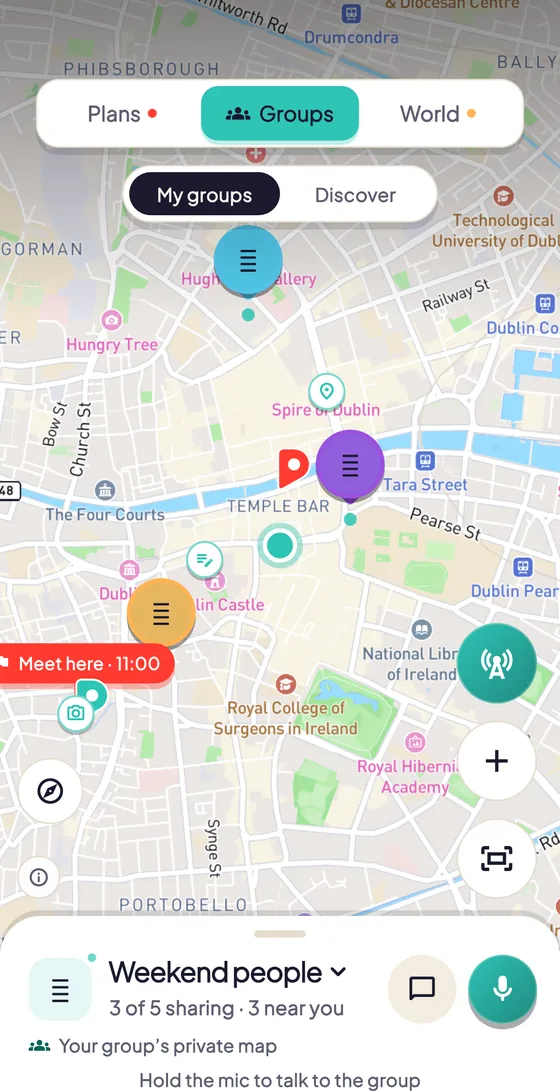
Pin your spots
Tap the + button on the map, choose Drop a pin, aim at the place and tap Add pin. Under What’s this spot?, add a note or a photo and tap Add spot. Turn on Also save to the group’s places to keep it in one of the group’s lists too. Shortcut: long-press the map.
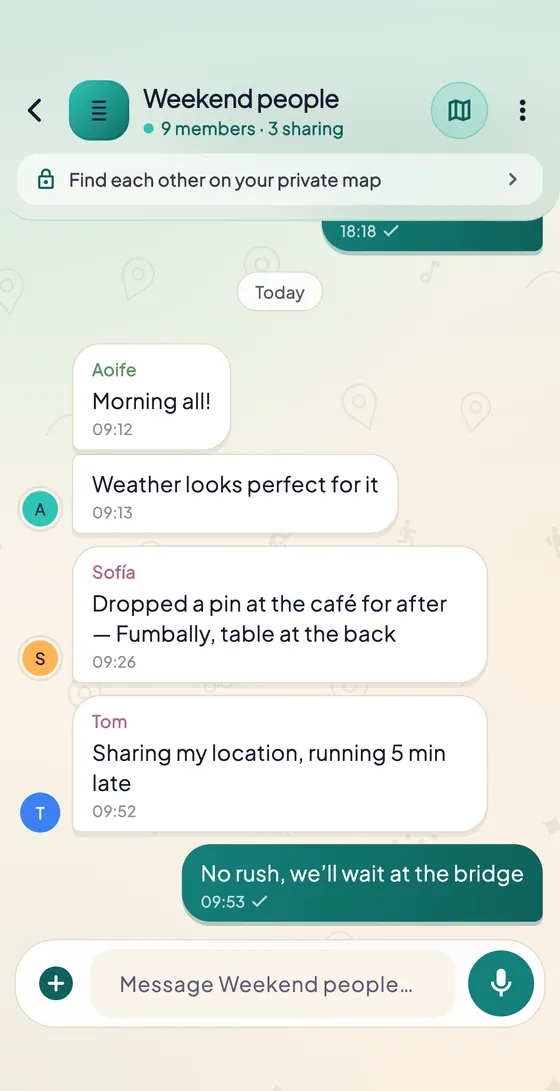
Chat and meet up
In the group chat, the + button sends a Photo, a Camera shot, a Plan or a Place, and you can hold the mic to send a voice note. Meeting up? On the group map, tap the location button (Share location), choose for how long and tap Share location with this group.
Tips
- Your location is only shared when you turn it on, with that group, and for the time you choose.
- Invite links last 1 or 7 days, and you can Revoke them at any time.
- Live location is off in public groups, so keep the group private if you want to find each other on the map.
- Only the person who added a spot can edit it; hosts can remove it.
- Hosts can decide Who can save places? and Who can create lists? in Members & settings.
Try it in the app
Pinfolk is made for your phone: the map, the camera and your plans are at their best in the app.
Still stuck?
Write to hello@pinfolkapp.com and a person from the team will get back to you, or visit Help & support.