Guide 1 of 8
Make plans in a minute
A plan is anything you want to do with other people: a run, a brunch, a games night. You choose what, when and where; Pinfolk gives it a page, a chat for everyone going and a link you can share. For something happening right now, there’s an even quicker way.
Open Create
Tap the + at the top of the Feed, or the + in the plans panel of the Map tab. In the Create menu, choose A plan.
Say what you’re planning
The plan takes seven short steps. In What are you planning?, pick the activity. Then, in Make it yours, give it a Title, a few lines under What to expect and some photos. Tap Continue to move on; your progress is saved as a draft.
Pick the date and time
In When is it?, choose One date, Several dates or Every week, then set the time in Starts at and the Length. Each date has its own spots, waitlist and chat. Under Each date you can also set a minimum number of people for it to go ahead and when joining closes.
Choose where you meet
In Where do you meet?, type in Search a place or address or tap the map to drop the pin. People only see the area until they join; the exact spot is shared with those going.
Decide who can come, then publish
In Who can come?, choose Public (on the map for anyone nearby) or Invite only. Set the Spots, whether it’s Free or Pay at the plan, and leave the Group chat on so everyone going can talk. Check the review and tap Publish plan.
Share it and welcome people
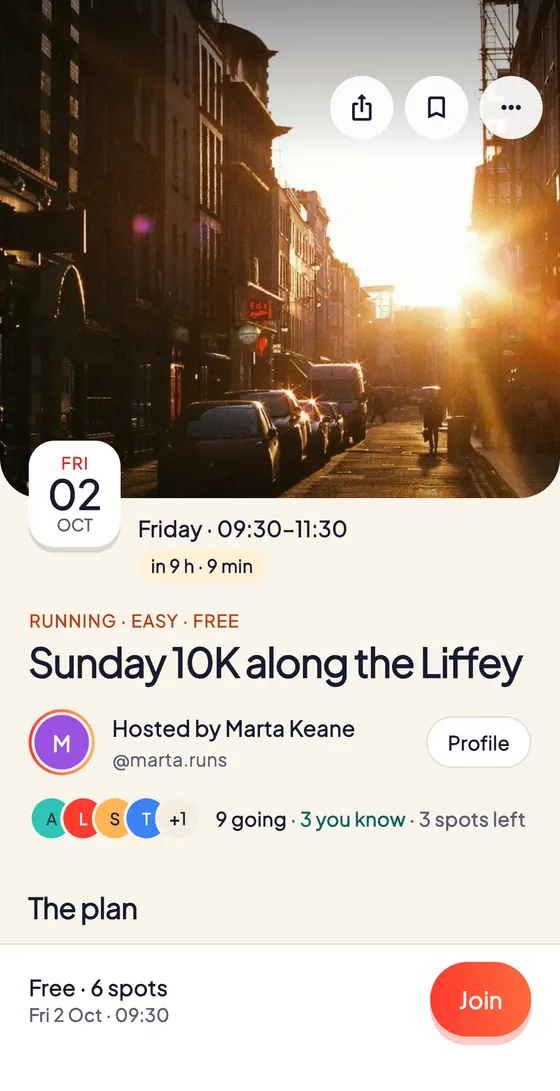
When a public plan goes live, the share sheet opens so you can send it on WhatsApp or anywhere else; for an invite-only plan, use Invite followers or Invite a group. Guests tap Join on the plan’s page and then Say hi in the chat. On that page you’ll also find Open chat and your Host tools to edit, add dates or invite more people.
Tips
- In a hurry? Choose Quick plan in the Create menu for something in the next two hours.
- Long-press the map in Plans mode to start a plan right at that spot.
- When a date is full, people can join the waitlist and get in automatically if a spot opens.
- Pinfolk doesn’t take payments: Pay at the plan just tells people they’ll pay when they arrive.
Try it in the app
Pinfolk is made for your phone: the map, the camera and your plans are at their best in the app.
Still stuck?
Write to hello@pinfolkapp.com and a person from the team will get back to you, or visit Help & support.